

Are you short of time? User combination keys, such as Windows + R, that are followed by an input of “compmgmt.msc” to discover missing drives. Access its ‘Settings’ and move to ‘Privacy’ to enhance speed by disabling background apps. This is just a hack.
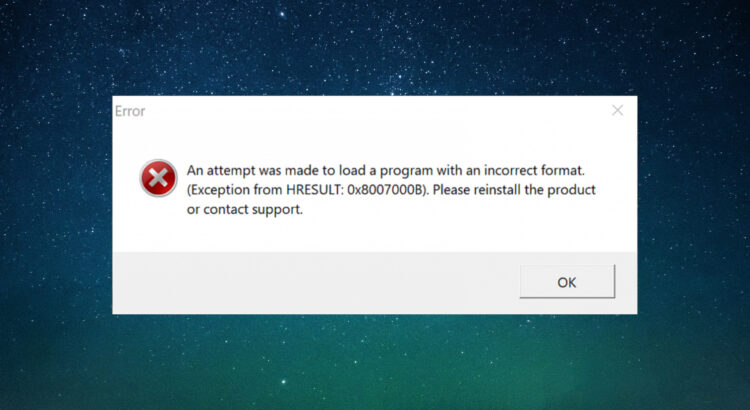
Likewise, there are multiple technical problems that hamper routine tasks. These problems can be glitches in the booting time, working with docs or Excel files, or even the speed of software or applications. The cases of application crashes and hangs are noticed 20 to 50 times more often than actual OS-level failures in Windows, according to Microsoft. Consequently, your efficiency decreases, and so does the overall productivity. These downsides massively disturb organisational goals.
Proven Fixes for 5 Common Windows 10 Problems
Here are 5 common Windows 10 errors that can pause your productivity, leading to adversely impacting revenues. Let’s find out how to navigate these common errors:
1. How to Find a Hidden Hard Drive
Users often ask, “Where’d my drive go?” Some technical glitches may lead to the disappearance of your drive from the file explorer. However, simply refreshing the desktop can be your first attempt to resolve a missing hardware partition. But it does not work. To get its view back,
- Go to the desktop.
- Right-click anywhere on the desktop.
- Choose ‘refresh’.
If the idea does not work, the drive can be hidden by someone. To undo it,
- Go to my computer.
- Click on the ‘hard disc drives’ option.
- Restart.
If still nothing does any good, then
- Press the Windows R tab.
- The Run dialogue box will be open.
- Type the command ‘compmgmt.msc’.
- The ‘Computer Management’ window will pop up.
- Go to its left panel and click ‘Disc Management’.
- Choose the drive emerging in the right pan.
- Right click the drive.
- A dropdown will emerge.
- Choose ‘Change drive and letter’.
- A drop-down will appear again to select another letter as the drive’s name.
Pro Tip: The visibility of disc management without showing its “health” status indicates that it is unallocated. Simply right-click the unused space to create a “New Simple Volume”. But this step will format the drive, and you may lose your existing data. So, be aware of it.
2. Stop Opening Files in the Wrong App
What if your Word file does not open in the usual Word format? What if all of your files lose their default format?
Don’t worry! It is very common. There are certain programmes, files, apps and software that can conspire to do so. However, IT consultants charge a definite fee to fix this issue. But you can be your own IT expert. Simply leverage the standard “right-click” method to re-associate file extensions like “.doc” or “.pdf”. To navigate this technical problem, you can:
- Hover the mouse over the file that has lost its default format.
- Go to the ‘Open With’ option from the adjoining pop-down.
- Select ‘Choose default program’ from the enclosed dropdown.
- From the default programs, choose the desirable one.
Pro Tip: To change default apps for your web browser or email client at once, follow Settings > Apps > Default Apps. These steps allow you to update all file types simultaneously.
3. Fix the “Ghost” File Glitch (When Changes Don’t Show)
How do you deal with it when you change the format of the Excel file and it does not reflect it? How do you tackle the non-reflection of no renaming file changes? Likewise, there are numerous troubles that drop your productivity.
This is a common Windows UI error where the File Explorer fails to auto-refresh. The standard solution is to simply right-click and refresh the file to fix it. IT experts follow these steps usually:
- Right-click anywhere on the desktop.
- Choose the ‘Refresh’ option.
- If the problem still persists, come out of that file or folder.
- Don’t close it.
- Move back to it again.
Pro Tip: If File Explorer consistently shows no updates, this can be a case of corrupted system files. So, you can open Command Prompt as an administrator and run the command sfc /scannow to fix the Windows image and enable auto-refresh functionality again.
4. Bring Back Your Missing Search Bar
Some unethical links can disturb the smooth processing of Windows 10. Its adverse influence can be noticed from the start menu, where the ‘search field’ option may vanish. Suppose you clicked an authorized backlink. And when you explored the search option later, it was not there. By considering the matter with the company providing IT solutions, it determined the cause and asked for whopping millions of dollars to fix it.
- Go to ‘Control Panel’.
- Move the mouse over the ‘Uninstall a program’ option appearing just below the title ‘Program’.
- Another window will pop up.
- Click the check box ahead of the message ‘Turn Windows features on or off’.
- Do the same to check the message ‘Windows Search’ and XPS viewers.
Pro Tip: To bring back the missing search box, right-click an empty space on the taskbar. Then, choose Search and tick the “Show Search Box” option. Sometimes, this field may be hidden, which can be enabled via taskbar settings in the registry.
5. Boost Your PC Speed in 2 Clicks
Many mobile users try to disable some apps that run in the background to make the browsing faster. This disabling reduces the usage of CPU and RAM, which significantly improves performance on older hardware. The similar trick can work on desktop as well to experience escalating speeds of internet browsing and downloading. To do it,
- Go to the settings.
- Click on the ‘Privacy’ option.
- Choose ‘Background apps’ from the dialogue box of the privacy option.
- Turn it off.
- Whenever you want it to do as before, click it on.
Pro Tip: This specific menu was changed in Windows 11. So, Windows 11 users must follow these steps to manage background permissions for each app individually: Settings > Apps > Installed Apps > Advanced Options.
Conclusion
Mastering the aforesaid Windows 10 fixes ensures quick solutions to overcome technical glitches without the need for an IT consultant. A few of these quick fixes also support in optimizing background apps and restoring missing interfaces. This is how users can immediately proactively handle simple maintenance steps for Windows 10 while ensuring that their system is healthy and reliable to align it with professional and organisational goals.